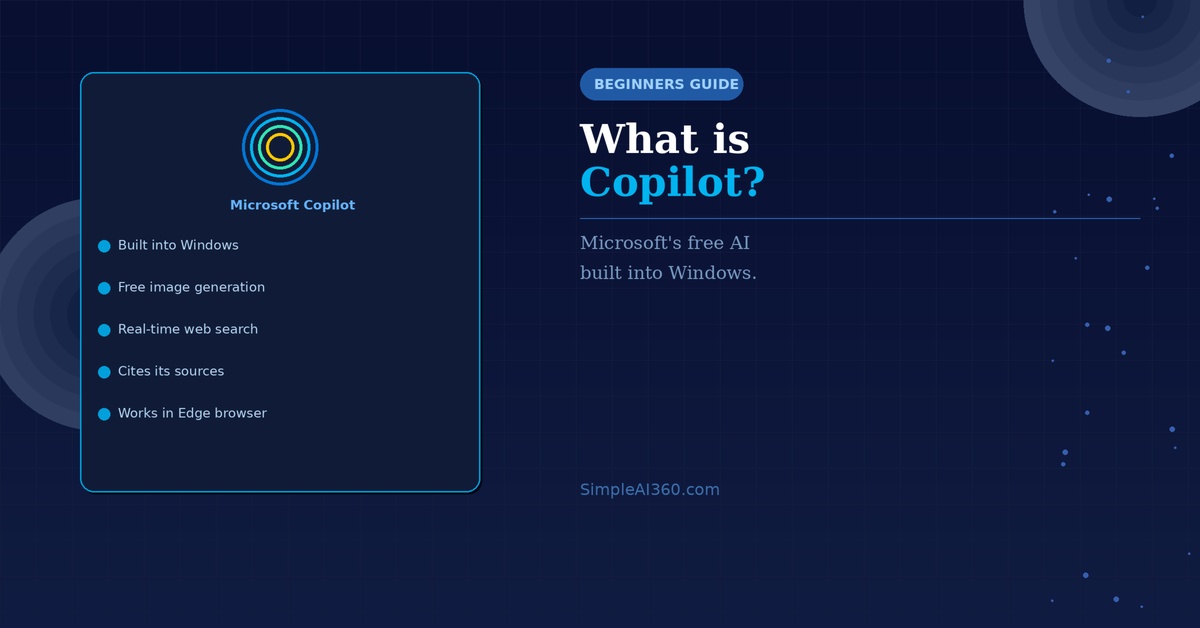
You may have noticed a new button appearing in Windows, Microsoft Edge, or your Office apps with a colourful swirl icon. That’s Microsoft Copilot — and it’s one of the most powerful free AI tools available right now. Here’s everything a beginner needs to know.
What Is Microsoft Copilot?
Microsoft Copilot is an AI assistant built by Microsoft and powered by the same technology behind ChatGPT. It’s built directly into Windows 11, Microsoft Edge browser, and Microsoft 365 apps like Word, Excel, and Outlook.
Think of it as a smart assistant that lives inside the tools you already use — there’s nothing extra to download or set up if you’re on a Windows computer.
Is Microsoft Copilot Free?
Yes. The standard version of Copilot is completely free to use at copilot.microsoft.com or inside Windows 11 and Microsoft Edge. There is also a paid version called Copilot Pro (around $20/month) which gives you Copilot inside Microsoft 365 apps like Word and Excel — but the free version is excellent for most everyday uses.
How to Access Copilot
There are three easy ways to get started:
- Go to copilot.microsoft.com in any browser
- Open Microsoft Edge browser and click the Copilot icon in the top right
- Press the Windows key + C on a Windows 11 computer
Sign in with a free Microsoft account (the same one you use for Outlook or Xbox if you have one).
What Can You Use Copilot For?
- Answering questions with real-time web search built in
- Writing and editing text — emails, reports, social posts
- Summarising long web pages in one click
- Generating free AI images with Designer (formerly Bing Image Creator)
- Coding help and technical explanations
- Research and fact-checking with sources cited
Copilot’s Unique Features vs Other AI Tools
What makes Copilot stand out from ChatGPT and Gemini for everyday users:
- It’s built into Windows — always one click away
- It cites sources — you can see where the information comes from
- It generates free images — up to a generous daily limit
- It can read and summarise any web page you’re currently viewing in Edge
Summarising Web Pages in Edge
This is one of Copilot’s most useful everyday features. While reading any web page in Microsoft Edge:
- Click the Copilot icon in the top right corner
- Ask: “Summarise this page for me”
- Get a concise summary in seconds
No more reading 10-minute articles when you just want the key points.
Generating Free AI Images
“Create an image of a cosy coffee shop in autumn with warm lighting and books on the shelves”
Copilot uses DALL-E technology to generate high-quality images from text descriptions for free. This is particularly useful for blog post graphics, social media content, or personal projects.
Copilot vs ChatGPT vs Gemini — Which Should You Use?
- Use Copilot if you’re on Windows or use Microsoft Edge regularly
- Use Gemini if you’re in the Google ecosystem (Gmail, Google Docs)
- Use ChatGPT for the best pure writing and creative tasks
The great news is all three are free — you can use different tools for different tasks.
Final Thoughts
Microsoft Copilot is one of the most accessible AI tools available because it’s already built into the devices and software most people use every day. If you’re on Windows and haven’t tried it yet, you’re one click away from a genuinely useful AI assistant.
Open Microsoft Edge right now and click the Copilot icon to try it.
Enjoyed this guide? Browse more beginner-friendly AI guides at SimpleAI360.com.




Leave a Reply